How to Customize My Account Dashboard Based on User Roles in WooCommerce?
Listing products and waiting for sales to roll in might be what most store owners look out for, but a big part of keeping customers happy comes down to the experience they have after signing in. The WooCommerce my account page by Extendons plays a big role here, but by default it is plain and the same for everyone.
That can feel too basic for stores that have different kinds of users like wholesale buyers, retail shoppers, or even vendors. That is where customization comes in. If you want to customize my account for WooCommerce based on user roles, you can show exactly what matters to different users without cluttering the page.
It is about making sure every person logging in sees the dashboard that fits their needs. In this blog we are going to look at why you should think about customizing, how it actually works, and how plugins like Extendons help you pull it off without code.
Why Customize the WooCommerce My Account Page
The default setup in WooCommerce is simple, but it does not really fit all types of businesses. You get the usual tabs like Orders, Dashboard, and Account Details. This might work if your store is small, but if you are running a membership store, wholesale setup, or service based business, the same dashboard for everyone is not enough.
By choosing to customize my account for WooCommerce, you give customers exactly what they need right away. A wholesale buyer might want quick access to bulk order forms. A vendor might want to upload documents or view special resources.
Normal customers may just want their past orders and shipping updates. Each role has its own workflow, so treating them all the same can cause frustration and waste time.
Some quick reasons why customization matters:
- Direct users to the right content instantly
- Show or hide tabs based on role so things feel more clear
- Improve store workflow by cutting out unnecessary clicks
- Make customers feel the store is designed with them in mind
How Role Based Customization Works in WooCommerce
The big question is how do you even manage this kind of control inside WooCommerce. WordPress and WooCommerce already come with the idea of user roles. You have roles like customer, subscriber, contributor, editor, and administrator. Some stores add custom roles like wholesaler or vendor.
When you tie this system with a plugin that lets you redesign the WooCommerce my account page, you can display content only to the roles you choose. So instead of creating different dashboards from scratch, you simply create rules. For example:
- Retail customers only see Orders, Downloads, and Account Details.
- Wholesalers see a custom tab with bulk ordering and price lists.
- Vendors see extra tabs for uploading resources or accessing support.
It works by assigning visibility to each tab or section, so when a person with a certain role logs in, the dashboard automatically adjusts for them.
Key Features to Expect When You Customize My Account for WooCommerce
When you pick the right plugin to work with, it is not just about hiding or showing tabs. You also get a lot of flexibility in how things look and behave. Extendons offers one of the plugins that helps with this, and here are some features that make role based dashboards more powerful:
- Create unlimited tabs: Add as many sections as you want beyond the default ones.
- Assign roles to tabs: Decide which role sees which tab so each user gets a specified experience.
- Change labels and icons: Rename or style each tab to match your brand tone.
- Add custom content: Insert text, images, or even shortcodes inside each tab.
- Control layout: Move tabs around or reorder them so the most important ones show first.
All of this means you can shape the WooCommerce my account page into something that matches the workflow of your business, instead of just accepting the default layout.
Step by Step: How to Customize the WooCommerce My Account Page Based on Roles
If you are ready to try this out, here is a breakdown of how you can do it with a plugin like Extendons. No coding is needed and you only have to follow the steps once to set it up.
Step 1: Install the Plugin
After buying and downloading the plugin, go to your WordPress dashboard. Head to Plugins then Add New then Upload. Choose the ZIP file and activate it.
Step 2: Access Account Customization
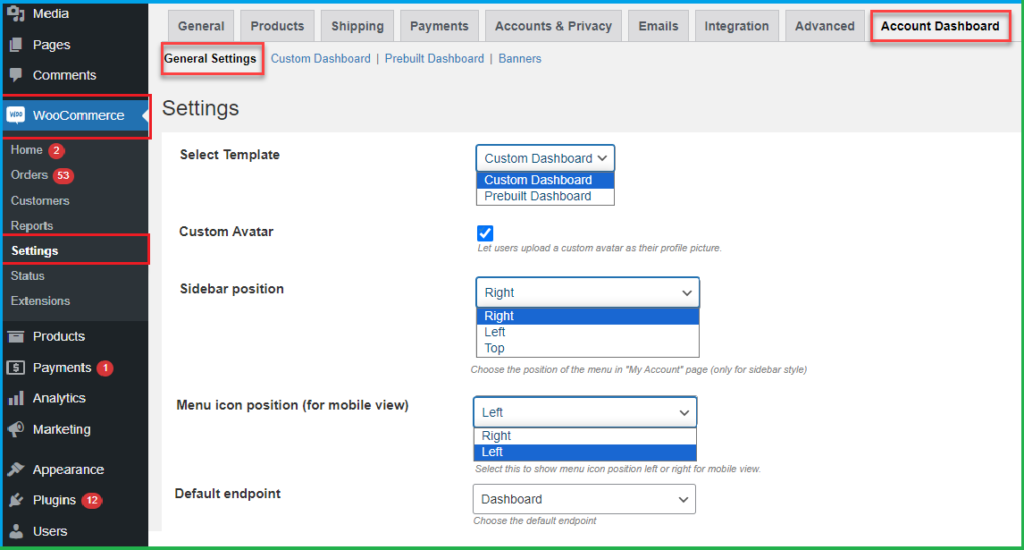
You will now see a new section under WooCommerce called My Account. This is where all settings live.
Step 3: Add a New Tab
Click the add tab. Give it a name like Wholesale Orders or Support Resources. You can also upload an icon if you want the dashboard to look more visual.
Step 4: Assign User Roles
In the settings of that tab, pick which roles can see it. This is where you connect the WooCommerce role system with your dashboard design.
Step 5: Add Content
Inside each tab, you can drop text, forms, or shortcodes. For example a bulk order form for wholesalers, or a contact form for vendors.
Step 6: Reorder Tabs
Drag and drop tabs into the order you want. Put the most important ones up front so customers do not have to search around.
Step 7: Save and Test
Log in with different roles to see how each dashboard looks. You will notice that one user role does not see the same tabs as another, which means the customization is working.
Benefits of Role Based Account Customization
You may wonder if all this effort is really worth it. The truth is that even small adjustments to the WooCommerce my account page can make a difference. Customers save time, they know exactly where to go, and they trust your store more. This is especially true if you deal with memberships, wholesale setups, or services that need documents or downloads.
Some benefits to keep in mind:
- Cuts down on customer support requests since people find things themselves
- Improves conversions since customers see relevant products or options quickly
- Builds loyalty because users feel the store understands their needs
- Makes the store look professional and structured
Extra Ideas to Try with Customized Dashboards
Once you have the basics in place, you can expand even more. For example you can:
- Show promotional offers only to retail buyers
- Give wholesale buyers access to private price sheets
- Add a knowledge base or video tutorials for members
- Link vendors to a support ticket system
With customize my account for WooCommerce, you are not limited to just default orders and downloads. You can make the dashboard feel like a personal portal for each group of users.
Wrapping It All Up
Customizing the WooCommerce my account page is not just about looks, it is about giving the right content to the right person at the right time. By focusing on user roles, you make the dashboard smarter and more useful. You also reduce the clutter that confuses customers and create a more direct path to what matters.
With plugins like Extendons, the process is simple enough for store owners without coding skills. Once you set it up, the system runs on its own, adjusting for every user who logs in. For any WooCommerce store that deals with different user roles, this step is not just nice to have, it is necessary.