How to Download TikTok Videos in Original Quality
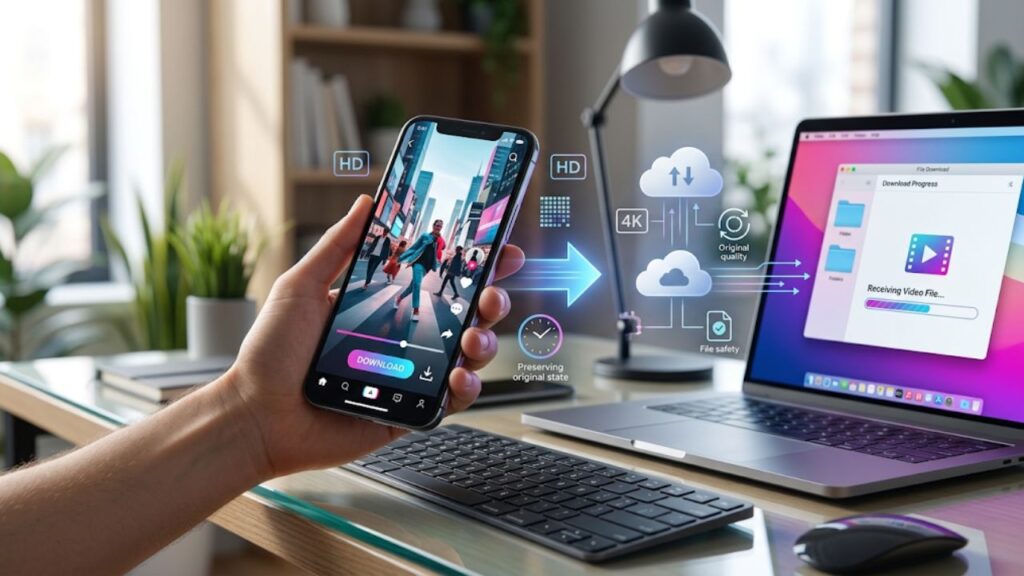
Three routes exist. Only one of them actually keeps the file at its highest quality.
The other two look the same on paper. In practice they hand you something softer, smaller or scarred with a watermark. Knowing which method does what saves the hour you would otherwise spend re-downloading everything.
Quick Answer
If you want the cleanest TikTok download at the highest quality TikTok actually serves, use a browser-based video downloader. Paste the video link, choose the HD option if it appears and save the MP4. That method skips both the compression the in-app Save button adds and the interface clutter that screen recording captures.
What Original Quality Even Means
First, a reality check that matters.
When somebody uploads a video to TikTok, TikTok re-encodes it before serving it back to viewers. That processing sets a ceiling on what any download can retrieve. TikTok has documented improvements to video upload quality over the years, but the platform still applies compression to every clip that arrives.
So “original quality” in this context means the highest quality TikTok itself stores and serves, not the raw file from the creator’s phone or camera. The platform caps delivery at 1080p Full HD even when creators upload in 4K, so the best possible download equals the best version TikTok serves. Nothing recovers a source that TikTok never held.
Which is fine, because that stored version is usually good enough to look sharp on any screen. What you want to avoid is the extra loss layered on top by the wrong method.
The Three Methods, Side by Side
| Method | Resolution kept | Watermark | Notes |
|---|---|---|---|
| Browser downloader | Highest available | None | Fetches the unmarked stream |
| TikTok native save | Slightly reduced | Handle plus logo | Re-encoded on the way out |
| Screen recording | Lower than source | Whatever is on screen | Always last resort |
Everything below explains why the table reads the way it does.
The HD Download Route: A Browser Tool
This is the one that keeps the file at the highest quality TikTok will let you have.
A browser downloader takes a post link, sends it to TikTok and asks for the same stream the app plays. That stream is unmarked and served at the resolution TikTok stores. Nothing is re-encoded on the way to your device.
- Resolution. Whatever the source video was stored at. Typically 540p, 720p or 1080p Full HD depending on how TikTok processed the upload.
- Watermark. None in most cases. TikTok holds an unmarked copy of the video on its own servers. This method requests that copy directly.
- File type. A clean MP4 that opens on any device without conversion.
How to do it:
- Open the TikTok video in the app or on tiktok.com.
- Tap the Share arrow, then Copy link. On desktop, copy the URL from the address bar.
- Open the TikTok Video Downloader in any browser.
- Paste the link and hit Submit.
- Choose HD when the option appears, then save the file.
No login, no install, no account tied to the download.
Method 2: The In-App Save Button
The Save button inside TikTok is convenient. It is also the reason so many downloaded videos come back looking softer than expected.
When you save through the app, TikTok processes the file for you. That processing does three things. It burns in a moving watermark showing the creator handle and the TikTok logo. It re-encodes the video using H.264 compression, which usually knocks the bitrate down from what the source held. It renders the final MP4 fresh, sometimes at a slightly reduced resolution or a different aspect ratio than the 9:16 original.
- Resolution. Close to the source, though re-encoding softens fine detail.
- Watermark. Yes. Burned into the frames rather than overlaid, so it cannot be removed after the fact.
- When it disappears. The Save button vanishes entirely if the creator has disabled downloads for that video.
Creators control this switch. TikTok explains the setting in its guidance on managing video downloads. When it is off there is no in-app route at all.
Fine for personal offline viewing. Bad for anything you plan to re-share or edit. The watermark travels with the file wherever it goes. Both Instagram Reels and YouTube Shorts algorithmically downrank content carrying visible third-party platform logos.
Method 3: Screen Recording
The last-resort method. It should stay that way.
Screen recording captures whatever your screen displays. That means whatever your device can render at, minus the compression added by the recording itself, plus every element of the app interface that happened to be on screen when the recording ran.
- Resolution. Limited by your device screen. Never matches what TikTok actually stores.
- Interface elements. Progress bars, comment icons, like counts, your own status bar and time. All of it comes with the recording.
- Audio sync. Occasionally drifts, especially on longer clips.
- Notifications. Any that arrive during recording are captured too.
There is one situation where this makes sense. When a creator has disabled downloads and you have a legitimate reason to keep a personal reference of what you saw. Even then, it is a worse copy than either of the other methods would have given you.
Decision Flow: Which Method Fits Your Need
A quick way to pick without reading everything.
- Want the cleanest, watermark-free file? Browser downloader. Full stop.
- Just watching offline, watermark is fine? In-app Save button. Fastest route.
- Creator disabled downloads and you need a personal reference? Screen recording, understanding the quality trade-off.
- Downloading your own video for editing on another platform? Browser downloader every time. The watermark tanks reach on Instagram Reels and YouTube Shorts.
- Building an archive of a creator’s work? Browser downloader on a laptop. Bulk saving on a phone becomes tedious fast.
Why Two Downloads of the Same Video Look Different
People notice this and blame the tool. The tool is usually not the problem.
- The source upload. If the creator uploaded a compressed file, no download will look better than that.
- TikTok’s processing. Different videos get different treatment depending on when they were uploaded, from what device and through what upload path.
- Your screen. The same file looks different on a 4K monitor and a five-year-old phone. That is not the file changing.
- The method used to save it. This is the one you actually control. It is what the rest of this article covers.
More on the specific causes sits in the guide on why downloaded TikTok videos look blurry.
Getting the Cleanest File Every Time
A quick checklist.
- Use a browser downloader by default for anything you want to keep.
- Choose the HD option when the tool offers it, rather than the standard one.
- Copy the full post link from Share, not a screenshot of the link.
- Save to a device with room. Some tools stop silently when storage is low.
- If a video is age-restricted or region-locked, no method will bypass that. That is TikTok, not the tool.
And if the watermark is the specific problem you are trying to solve, the watermark-free download guide focuses on that alone.
One Note on Rights
None of these methods change who owns the video.
TikTok’s creating and uploading videos documentation is clear that creators retain rights to their content. A high-quality download is still somebody else’s work.
- Personal offline viewing and reference are ordinary uses.
- Reposting a downloaded video as your own is not.
- Commercial work needs permission from the creator first.
- Credit the creator when you share, especially without a watermark on the file.
SD, HD and Full HD: What TikTok Actually Serves
Three quality tiers turn up in downloader menus. Worth knowing what each one really means on TikTok.
- SD (Standard Definition). Usually 540p or lower. Smaller file, faster download, softer detail. Some older uploads and short clips exist only at this tier.
- HD (High Definition). Typically 720p. Comfortable middle ground for phone playback and most editing needs.
- Full HD. The 1080p Full HD ceiling. The best TikTok will ever hand back. Only available when the platform has cached a Full HD version of that specific clip.
A downloader offering a Full HD option is not inventing that quality tier. It is checking which streams TikTok is serving for the video and letting you pick the best one available. When only SD exists, the tool cannot manufacture Full HD out of nothing.
There is one thing creators can do on their end that changes what viewers download. TikTok has an Upload HD toggle in Settings under Data Saver. When it is off, uploads compress harder before landing on the platform. When it is on, the source arrives with more headroom to survive TikTok’s processing. Which explains why two identical shots from two different creators can look markedly different once downloaded.
File Size and Device Compatibility
A quick reference for what you actually end up with on your device.
- File format. MP4 with H.264 video and AAC audio. The universal combination that plays on any phone, tablet, computer or smart TV without conversion.
- File size. A 15-second Full HD clip typically lands between 2 and 5 MB. A minute of video sits closer to 10 to 20 MB. Nothing that stresses modern storage.
- Device support. Works identically on iPhone, Android, Windows, Mac, Linux, ChromeOS and any tablet with a modern browser.
- No account needed. A browser downloader never asks for your TikTok login. The download completes without any account of yours being attached to the request.
Original Quality FAQs
Can I download a 4K TikTok video?
No. TikTok compresses every upload down to 1080p or lower for delivery, even when the creator uploaded in 4K. The highest quality you can download is the highest quality TikTok actually serves, which caps at 1080p.
Why is the in-app save quality worse?
Because TikTok re-encodes the video during the save and stamps a watermark into it. Both steps add compression.
Does a browser tool remove the watermark?
It does not need to in most cases. TikTok stores a separate unmarked source file on its servers. The tool then requests that copy directly. A small number of videos arrive with a watermark already baked into the upload by the creator. No tool can strip those.
Is HD always available?
Only when TikTok has an HD stream for that specific video. Older uploads and some short clips may only exist at standard resolution.
Right Method, Right File
For the cleanest possible file at TikTok’s true original quality, use a browser-based downloader. It fetches the same unmarked source stream that TikTok’s own player uses, so nothing extra is stripped away or added on. The in-app Save button is fine for personal offline viewing when the burned-in watermark does not bother you. Screen recording sits at the bottom of the list because it captures your display rather than the file. No version of that beats the actual source.
Pick once, save the file properly, keep it forever. The three methods are not equal and the best one is also the fastest, which is the rare case where the easy answer is also the right one.
Paste a post link into the video downloader for the clean version. The story viewer handles Stories. The music downloader pulls the audio track when that is what you actually wanted.