iPhone Screen Mirroring: How to Mirror Your iPhone to a TV
Smartphones have become the main place where people store photos, watch videos, browse the internet, and communicate. However, even the largest iPhone display can feel limiting when you want to share something with friends or enjoy content with family. That’s where iPhone screen mirroring comes in.
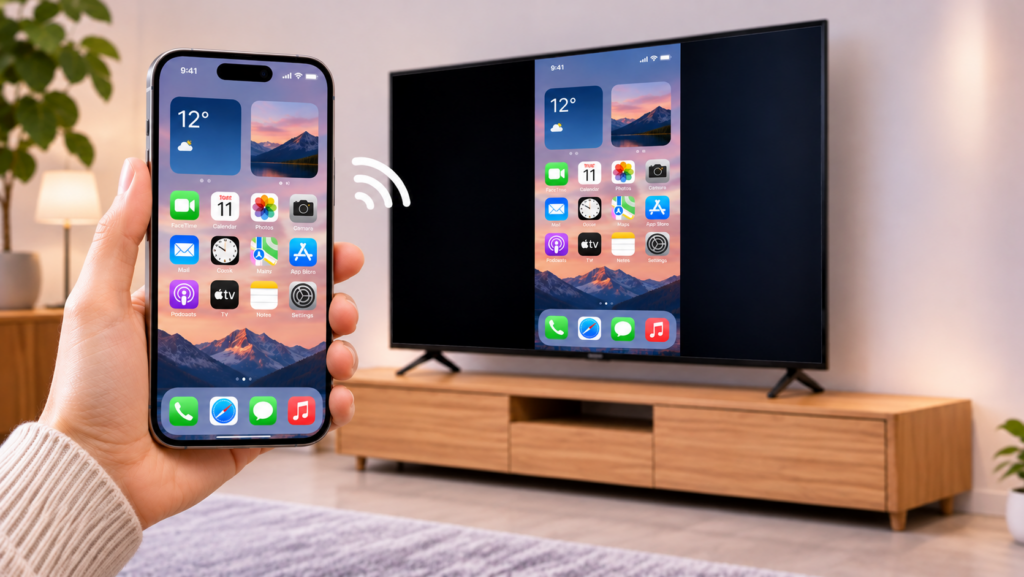
Screen mirroring allows you to display your iPhone’s screen on a larger TV without transferring files or connecting a cable. Whether you want to show vacation photos, give a presentation, play mobile games, or browse content together, there are several ways to connect your iPhone to a television.
In this guide, we’ll explore the main methods of iPhone screen mirroring, explain how to set them up, and look at what to do if your TV doesn’t support Apple’s built-in wireless technology.
What Is iPhone Screen Mirroring?
Screen mirroring is a wireless technology that duplicates your smartphone’s display on another screen, such as a Smart TV. Everything you do on your iPhone can appear on the television in real time, including navigating apps, opening photos, browsing websites, and viewing presentations.
It’s worth distinguishing screen mirroring from regular casting. With screen mirroring, the TV displays your entire phone screen. Casting, on the other hand, usually sends a specific video, photo, or audio file to the TV while allowing you to continue using your phone independently.
Both options are useful, but the right choice depends on what you want to share.
How to Mirror an iPhone to a TV Using AirPlay
AirPlay is Apple’s built-in wireless streaming technology. If you have an Apple TV or a Smart TV that supports AirPlay, you can mirror your iPhone without installing an additional application.
Here’s how to do it:
- Connect your iPhone and AirPlay-compatible TV to the same Wi-Fi network.
- Open Control Center on your iPhone. On newer models, swipe down from the top-right corner of the screen.
- Tap the Screen Mirroring button.
- Select your television from the list of available devices.
- If a passcode appears on your TV, enter it on your iPhone.
Your iPhone screen should now appear on the television. To end the session, open Control Center, tap Screen Mirroring, and select Stop Mirroring.
AirPlay is convenient because it’s already integrated into iOS. However, it only works with compatible receivers. If your television doesn’t support AirPlay and you don’t have an Apple TV, you’ll need another solution.
How to Screen Mirror an iPhone to a TV Without AirPlay
Not every Smart TV supports AirPlay. Many televisions use other technologies, such as Chromecast, Roku, Fire TV, or DLNA. This can make connecting an iPhone less straightforward, especially if you want to mirror the entire display rather than stream an individual video.
One option is to use a dedicated screen mirroring application.
For example, DoCast is an iPhone and iPad app designed to connect Apple devices to a range of Smart TVs and streaming devices. It supports Chromecast, Fire TV, Roku, and DLNA-enabled televisions, making it useful when AirPlay isn’t available.
To get started with DoCast:
- Download and install DoCast from the App Store.
- Make sure your iPhone and TV are connected to the same Wi-Fi network.
- Open the application and select your television or streaming device from the available devices.
- Tap the Screen option.
- Adjust the mirroring settings if necessary, then tap Start mirroring.
Your iPhone display will appear on the TV. You can rotate your phone, adjust the picture quality, and choose whether to mirror sound, depending on the available settings and device.
DoCast also offers separate options for streaming photos, videos, and music. This is useful when you don’t need to share your entire screen and simply want to enjoy personal media on a bigger display.
One thing to keep in mind is that screen mirroring is a premium feature in DoCast. The free version offers photo casting without limits, along with time-limited video and music streaming.
Can You Mirror an iPhone to a TV Using a Cable?
If you prefer a wired connection or have an unstable Wi-Fi network, you can also connect your iPhone directly to a television using an appropriate adapter.
Depending on your iPhone model, you’ll need either a USB-C-to-HDMI adapter or a Lightning Digital AV Adapter. You’ll also need a standard HDMI cable.
Follow these steps:
- Connect the adapter to your iPhone.
- Plug one end of the HDMI cable into the adapter.
- Connect the other end to an available HDMI port on your TV.
- Use your TV remote to select the corresponding HDMI input.
Once connected, your iPhone display should appear on the television.
A wired connection doesn’t depend on Wi-Fi and can be useful when wireless mirroring isn’t working. However, it requires extra accessories and limits how far you can move from the TV.
Common iPhone Screen Mirroring Problems and How to Fix Them
Even when you use a compatible TV or application, screen mirroring doesn’t always work perfectly. Fortunately, most connection issues are relatively easy to troubleshoot.
The TV doesn’t appear in the device list.
First, check that both devices are connected to the same Wi-Fi network. Restarting your router, television, and iPhone can also help. Make sure that the TV’s wireless connection is enabled.
Screen mirroring keeps disconnecting.
An unstable Wi-Fi connection is one of the most common reasons for interruptions. Try moving closer to your router or reducing the number of devices using the network. You can also restart the streaming application.
There’s a noticeable delay.
Some delay is normal with wireless screen mirroring, particularly when playing games or displaying fast-moving content. A stronger Wi-Fi connection and lower streaming quality settings may improve performance.
Some videos show a black screen.
Certain streaming platforms restrict screen recording and mirroring because of copyright protection. As a result, protected content from services such as Netflix or Apple TV+ may not display through third-party mirroring applications. This is a restriction imposed by the content providers rather than necessarily a problem with your iPhone or TV.
Which iPhone Screen Mirroring Method Should You Choose?
The best method depends on your television and how you plan to use the connection.
- AirPlay: A convenient choice if your TV supports Apple’s wireless technology.
- A screen mirroring app: Useful if you want to connect an iPhone to a TV that supports Chromecast, Roku, Fire TV, or DLNA instead of AirPlay.
- An HDMI adapter: A practical alternative when you prefer a wired connection or don’t have reliable Wi-Fi.
If you regularly share photos, browse content, or display your iPhone screen on different types of televisions, having a dedicated mirroring application can make the process easier.
DoCast is one option worth considering. It combines screen mirroring with photo, video, and music casting and supports several popular streaming platforms and Smart TV technologies. You can find more information about its features and compatibility on the official DoCast website.
Final Thoughts
iPhone screen mirroring makes it easier to enjoy content on a larger display and share what’s happening on your phone with other people. AirPlay is a straightforward option for compatible televisions, while dedicated applications provide alternatives for TVs that use different streaming technologies. A wired HDMI connection is another possibility when wireless options aren’t suitable.
Before choosing a method, check which technologies your TV supports and make sure both devices meet the connection requirements. With the right setup, turning your iPhone into a convenient source of content for your television takes only a few steps.