How to AirPlay to Firestick from Your iPhone in 2025
Streaming content from your iPhone or iPad to a big screen can instantly enhance your viewing experience. While AirPlay is designed primarily for Apple TV, many users wonder if it is possible to use AirPlay on an Amazon Firestick. The good news is, yes, it can be done with a few simple workarounds.
Whether you want to mirror your iPhone screen, stream videos, or share photos, this guide walks you through how to AirPlay to Firestick using different methods. We will explore the best apps and hardware options to make your iOS-to-Firestick connection smooth and reliable.
Can You AirPlay to Firestick
Amazon Firestick does not support AirPlay natively. Unlike Apple TV or AirPlay-enabled smart TVs, Firestick needs a bit of help to receive content from iOS devices. Still, it is entirely possible to stream iPhone to Firestick.
With the right third-party tools, you can mirror your screen, play videos, or display photos just like you would with AirPlay. If you are asking, “Can you AirPlay to Firestick?”, the answer is yes, and we will now walk through exactly how to do it.
Method 1: Use Firestick AirPlay Receiver App
The most popular method to enable AirPlay to Firestick is by installing an AirPlay receiver app directly on your Firestick. These apps act as a bridge between your iPhone and the Firestick, allowing you to use native AirPlay features without needing an Apple TV.
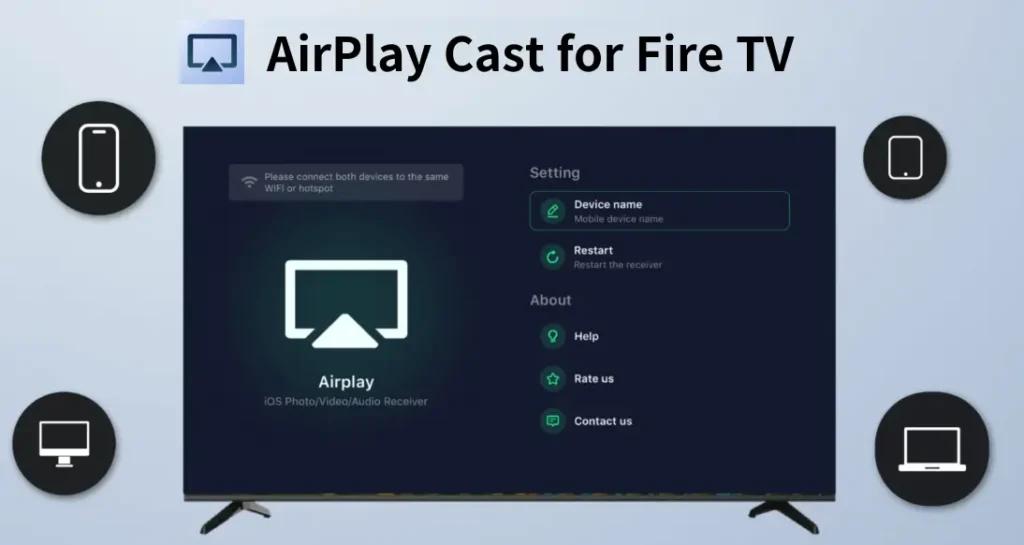
BoostVision offers a dedicated AirPlay receiver app that is fully optimized for Amazon Firestick. To get started, search for “BoostVision AirPlay” in the Amazon Appstore on your Fire TV Stick. Once installed, launch the app, and now you get “Amazon Firestick AirPlay”:

Step 1. Make sure your iPhone and Firestick are connected to the same Wi-Fi network.
Step 2. On your iPhone, swipe down to open the Control Center, tap on Screen Mirroring.
Step 3. Select your Firestick from the list of available devices.
The connection usually takes just a few seconds. Once paired, you will be able to stream videos, photos, or your full screen. This is the most straightforward answer to the question “how to AirPlay on Firestick”. BoostVision’s app is designed to deliver smooth performance and minimal delay, making it ideal for both casual and continuous use.
Method 2: Use an iPhone Screen Mirroring App
Another method to stream iPhone to Firestick is by installing a screen mirroring app on your iPhone that works in tandem with your Firestick.
Delta Software has developed a reliable screen mirroring solution that works across various devices, including Amazon Firestick. First, download and install the Screen Mirroring app for Firestick on your iPhone from the App Store. Then, proceed with the steps below:
Step 1. Make sure both your iPhone and Firestick are on the same Wi-Fi network
Step 2. Launch the screen mirroring app on your iPhone. The iPhone app will automatically detect the Firestick.

Step 3. Tap the connection icon, then tap on the Firestick device name, and allow the connection when prompted.
You will then be able to mirror your iPhone screen with just one tap. This method is particularly useful for presentations, browsing photos, or showing off apps that do not support native casting.
Method 3: Use an HDMI Dongle
If you prefer a plug-and-play option without apps, you can consider a hardware solution. Although this method does not directly involve the Firestick, it is a reliable way to bring AirPlay functionality to your TV.

There are third-party HDMI dongles available that support AirPlay natively. These devices plug into your TV’s HDMI port and act as an AirPlay receiver. Some well-known brands offer compact and affordable AirPlay receivers that are compatible with iPhone, iPad, and Mac.
Once connected and powered on, they show up in your iPhone’s Screen Mirroring list just like an Apple TV would. This is a good choice if you want a more stable connection or if your Firestick is already being used for other apps.
Verdict
So, can you AirPlay to Firestick? Yes, and there are multiple ways to do it depending on your needs. If you want the easiest and most direct way, try the BoostVision AirPlay receiver app for Firestick. For those who prefer a mirroring solution directly from the iPhone, an iPhone screen mirroring app works well. If you are looking for an even more stable setup, a third-party AirPlay-compatible hardware dongle may be worth the investment. Regardless of the method you choose, knowing how to AirPlay to Firestick gives you more flexibility in how you enjoy your iOS content on a larger screen.