Can you Import an OLM File to Windows Outlook?
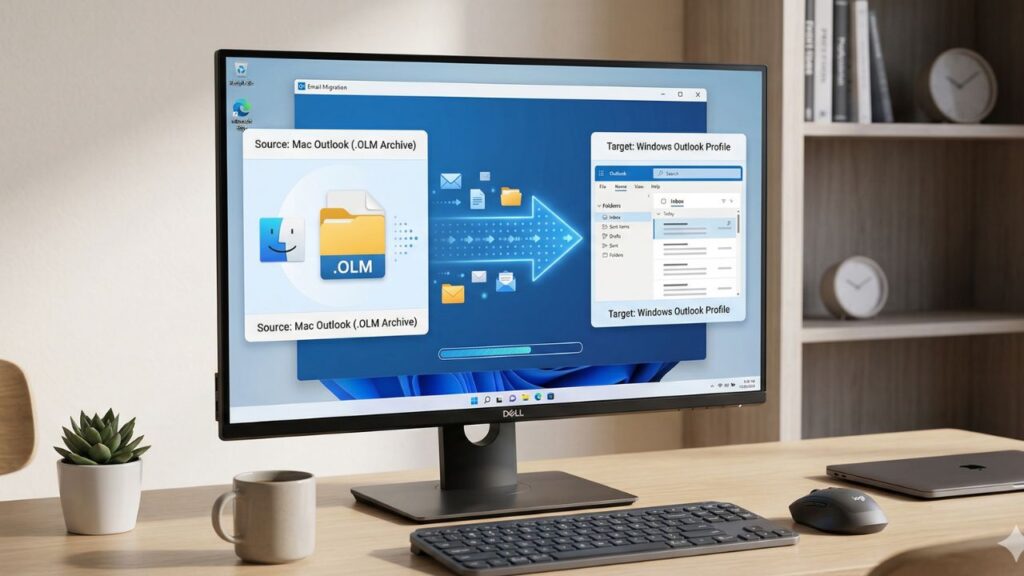
You cannot straightaway import an OLM file into the Windows Outlook application as this file format is specific to Mac Outlook. For importing OLM file into Outlook on the Windows platform, you have to first convert OLM file into PST file format. For this, you have to use an OLM to PST converter software. After conversion, you can import the PST file into the email client on Windows by using its Import and Export feature. In this article, we guide you on how to import an OLM file into Windows Outlook.
Why is there a Need to Import OLM into Windows Outlook?
Here are some common reasons to import OLM files into Outlook for Windows:
- When switching from Mac OS to Windows OS.
- Migrate from Outlook for Mac to Windows Outlook.
- Need to access mailbox data stored in old OLM files.
- Leveraging the advanced features of Windows Outlook when configured with Office 365.
How to Import an OLM File to Windows Outlook?
As mentioned above, there is no direct way to import OLM file data into Windows Outlook. You need to convert the Mac Outlook’s data file into PST file format first. For this, you have to take the help of a specialized OLM to PST converter tool. One such tool to convert OLM file to PST is Stellar Converter for OLM. Trusted by individuals as well as professionals, this powerful OLM to PST software is purposefully designed to easily convert Outlook for Mac data files (.olm) to Outlook-importable PST file format.
You can convert OLM files of any size with this robust OLM to PST converter software. The OLM file data can also be saved in other widely used file formats, including HTML, PDF, MSG, and EML. All you need to do is download and install it on a Windows PC and start using it.
Here is what this tool can do:
- Converts OLM files to PST with 100% precision and complete data integrity
- Presents a detailed preview of the mailbox items
- Preserves the original mailbox folder hierarchy and structure after conversion
- Allows to save individual mailbox items – emails, contacts, tasks, etc.
- Saves OLM file data in RTF, PDF, HTML, etc.
- Directly exports OLM file contents to an existing Outlook profile
Here is how to use Stellar Converter for OLM:
- Download Stellar Converter for OLM from the official website on your Windows PC.
- Install and launch it.
- You’ll see the Select OLM Mailbox window.
- Click on Browse to select the OLM file. Then click on Convert. The tool will scan the selected OLM file.
- After scan, all the mailbox items will be listed in a tree view structure on the left side.
- Select any mailbox item to see its enhanced preview in the right pane.
Note: Use the Navigation Pane Options at the bottom to view other mailbox items, such as Calendar, Contacts, Tasks, and Notes.
- Now, click on the Save Converted Mailbox.
- Select Save as PST from the Save File window and click on Next.
- The Save File Option window will appear. Choose from the given options:
- Save each mailbox as individual PST
- Save all mailboxes in a single PST
- Then, click on Browse to select the destination. Click on Save.
Now, with the help of the built-in Import/Export wizard, import the PST file into Outlook.
Stellar also offers an online version of OLM to PST converter tool. You can use it on any device running on Windows, macOS, or Linux. All you need is a web browser, your OLM file, and an active internet connection. You can use it to convert small OLM file/s (≤ 100 MB) to PST format in 3 simple steps – Upload > Convert > Save.
Here are some highlights of this online tool:
- Convert OLM files instantly
- No download or installation of any software required
- Convert OLM file of ≤ 100 MB for free
- Preview the contents using a downloadable HTML file
- Only a web browser is required
Conclusion
OLM files are compatible with Outlook for Mac only. Because of this reason you are unable to directly import OLM files into Outlook for Windows. You can use Stellar Converter for OLM – a specifically designed OLM file converter tool to convert the OLM file into PST – a format supported by Windows Outlook. After this, import the PST file into Outlook on the Windows platform by using its Import and Export wizard.