A Practical Photo Editing Workflow for Clearer Online Tutorials
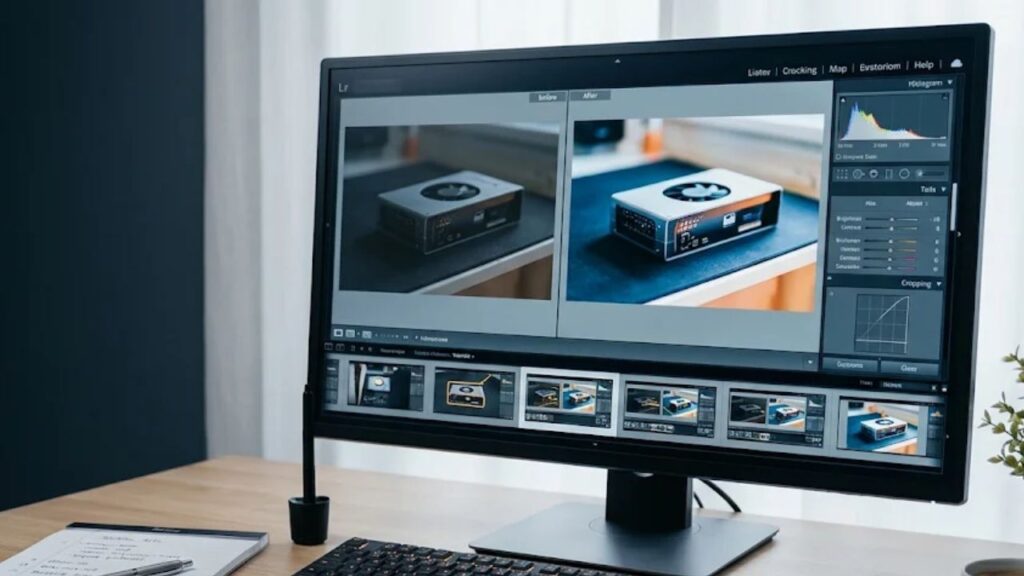
A useful tutorial makes its steps easy to follow. Photographs often carry much of that explanation, whether the subject is a handmade object, a software setup, or a small home project. Good editing helps readers notice the relevant detail without changing the meaning of the image. The most reliable approach begins with a clear purpose and ends with a careful review of what the reader will actually see.
Decide what each photograph needs to explain
Before opening an editor, write a short description of the job each image performs. One photograph might introduce the materials, another might show the position of a component, and a final image might illustrate the finished result. If two pictures explain the same thing, keep the clearer one. A smaller set of purposeful images is easier to edit consistently and easier for readers to understand.
This planning step also reveals gaps. A polished final photograph cannot replace a missing view of an important intermediate step. When possible, capture those missing details before putting away the equipment. Editing is most useful when it supports a complete visual explanation rather than trying to manufacture evidence that was never recorded.
Keep an original and make a working copy
Save the original files in a separate folder before making changes. Use descriptive names that identify the project and sequence. A simple system such as materials, preparation, assembly, and result helps collaborators find the right image without opening every file. Keep exported versions in another folder so that a compressed web image does not accidentally become the starting point for future edits.
For projects involving other people, agree on permissions before uploading photographs to any service. Review visible screens, address labels, documents, and reflections for private information. If an image contains material that should not be shared, choose a different photograph or remove the sensitive detail in a way that does not misrepresent the instructional step.
Correct framing before adjusting the style
Begin with rotation, straightening, and a modest crop. The important part of a photograph should be easy to locate, but the reader also needs enough surrounding context to understand its position. A close crop of a connector, for example, may become confusing if it removes the device it belongs to. Compare the edited frame with the original and ask whether the relationship between objects remains clear.
Check the shape required by the publishing layout. An image that works in a wide desktop article may lose essential details in a narrow mobile preview. Leave some breathing room around the subject and avoid placing crucial information at the extreme edge. Make separate exports when the same picture needs substantially different crops.
Use restrained tonal and color corrections
Adjust exposure so that important surfaces remain visible. Brightening every shadow can flatten an image, while excessive contrast may hide the exact detail the tutorial is meant to explain. Work in small increments and inspect both light and dark areas. White paper, pale walls, and reflective surfaces can provide useful visual references, although mixed lighting sometimes requires a compromise.
Consistency matters across a sequence. A set of photographs taken under the same light should usually feel related. When colors shift sharply between steps, readers may wonder whether an object or material has changed. Keep notes about the adjustments that worked, but review every image individually instead of assuming that one setting suits the entire collection.
Evaluate AI assistance as one part of the process
AI assisted editing can be considered alongside familiar manual controls, but every proposed change still needs human review. When comparing an AI Image editor with other editing options, start with a non-sensitive sample and a specific task. Judge the result against the original at full size, and check the service’s current terms and available controls before relying on it for a larger project.
For instructional photographs, accuracy should guide the decision. Changes that invent labels, alter markings, reshape components, or remove a meaningful obstacle can make the tutorial less trustworthy. If an edit changes the substance of what happened, retake the picture or explain the change clearly. A convincing image is not automatically an accurate record.
Export for the page and review in context
Choose dimensions that suit the intended display size and use compression carefully. The objective is a file that loads reasonably while preserving the details readers need. Reopen the exported image rather than judging only the editor preview. Small text, fine edges, and subtle texture may change after resizing or compression, so inspect these areas before publishing.
Place each image near the step it explains. Write captions that identify the relevant detail without repeating the entire paragraph. Alternative text should communicate the image’s instructional purpose in plain language. A description of the component’s position may be more useful than a list of colors or a generic phrase about a photograph.
Finish with a repeatable quality check
Read the tutorial from beginning to end on a smaller screen. Confirm that the image order matches the instructions, colors remain reasonably consistent, and no private information has slipped through. Ask another person to follow a step using the photographs alone. Their questions often reveal missing context that the original author no longer notices.
A repeatable workflow reduces unnecessary decisions. Preserve originals, establish each image’s purpose, make restrained corrections, and inspect the final exports where readers will encounter them. These habits leave room for creative choices while keeping the tutorial grounded in clear and faithful visual evidence.