How to Build a Safer and More Efficient Desktop Messaging Setup on Windows

Technology / Software / How-To
Desktop messaging has quietly become part of the daily work environment for a large number of people. What used to be something checked occasionally on a phone now often stays open beside a browser, document editor, spreadsheet, or project management tool for most of the working day.
That shift is especially noticeable among users who manage files, group conversations, client messages, and online communities from a Windows computer. In Hong Kong and Taiwan, where work frequently moves between English and Traditional Chinese, desktop messaging can also serve as a practical bridge between local and cross-border communication.
But installing a messaging application is only the first step.
A good desktop setup depends on where files are stored, how notifications behave, whether the interface is comfortable to use, and how account security is handled. Small configuration choices can make the difference between a useful communication tool and another source of distraction.
The goal is not to create the most complicated setup possible. It is to make messaging fit naturally into the rest of the desktop workflow.
Why Desktop Messaging Still Matters
Mobile messaging is convenient, but it is not always the best environment for longer or more detailed work.
A full-size keyboard makes extended replies easier. A larger display allows users to keep a conversation open while checking a document, reading a webpage, or working with another application. Files can be downloaded directly into organised folders rather than being left in a phone’s temporary storage.
For office workers, freelancers, students, and small business owners, this can make desktop messaging noticeably more efficient.
Consider a typical workday. A user may receive a PDF from a supplier, a screenshot from a colleague, a spreadsheet from a client, and several messages from a project group within the same hour. Handling all of that through a phone quickly becomes inconvenient.
On a Windows desktop, those files can be renamed, moved, reviewed, and compared without constantly switching devices.
This is one reason desktop messaging remains relevant even as mobile devices become more powerful. The desktop is still where many people organise information.
Choose the Right Desktop Version for Your Workflow
Before adding a messaging platform to a Windows computer, it is worth thinking about how the software will actually be used.
Some users want a desktop application mainly for casual conversations. Others use it for large groups, document exchange, business communication, or online communities. Those different situations can lead to very different configuration needs.
Chinese-speaking users in Hong Kong or Taiwan may also want to understand the relationship between the Windows client, account synchronisation, language preferences, and normal desktop usage before making the application part of their daily routine. A practical Telegram 电报电脑版指南 can provide useful context for users who want to understand the desktop environment before configuring it for regular use.
Regardless of the platform, it is better to install software deliberately than to treat the first available download button as the correct option.
Users should check:
- whether the version is intended for their operating system;
- whether the installer comes from a source they trust;
- whether an existing desktop installation needs to be updated rather than replaced;
- whether important local files or settings should be reviewed first.
This matters even more on computers used for work. A rushed installation can create unnecessary security and compatibility problems later.
Organise Downloaded Files Before They Become a Problem
One of the biggest differences between mobile and desktop messaging is the volume of files that can accumulate.
A Windows computer may remain signed in throughout the day. If the user belongs to active groups or channels, images, videos, documents, and archives can build up surprisingly quickly.
This is usually manageable at first. The problem appears gradually.
The Downloads folder becomes cluttered. Several versions of the same document appear with slightly different names. Large media files use storage space even though the user no longer needs them.
A simple folder structure can prevent much of this.
For example:
- Work Documents
- Client Files
- Images
- Temporary Downloads
- Archive
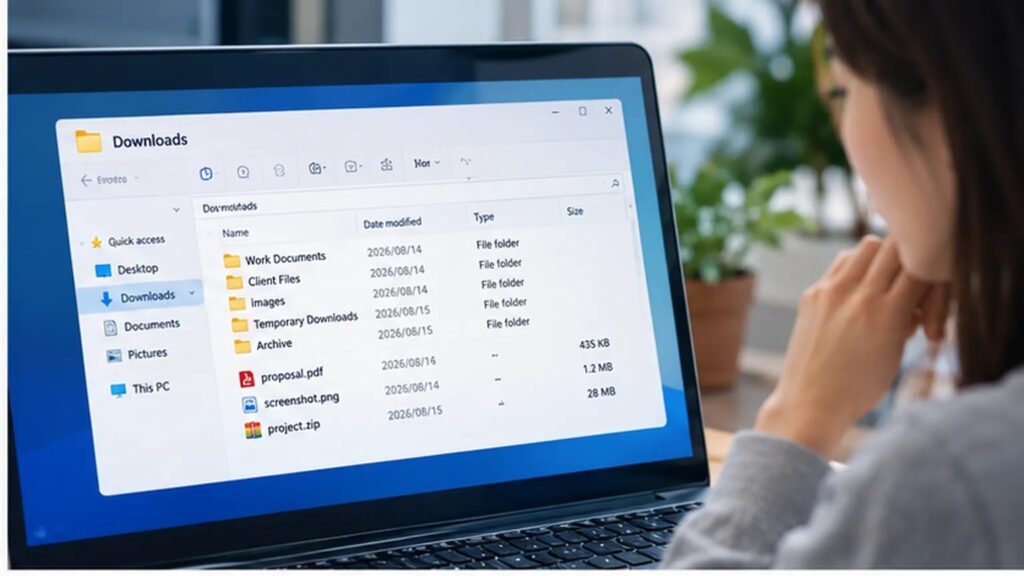
The exact structure is less important than consistency.
Users who regularly exchange project files may also benefit from renaming important documents immediately instead of leaving them with generic names. Searching for a meaningful project name later is much easier than trying to remember which file was called ‘document_27_final_new.pdf.’
For Hong Kong and Taiwan users who work with both Chinese and English file names, a consistent naming system can be even more helpful.
Notifications Should Support Work, Not Interrupt It
Desktop notifications are useful until they become constant.
Large group chats, public communities, and social conversations can generate far more alerts than a person realistically needs to see in real time. If every message triggers a banner and sound, a communication tool can quickly become a productivity problem.
The best approach is usually selective rather than extreme.
Turning off every notification may cause important messages to be missed. Leaving everything enabled creates the opposite problem.
A more practical setup is to keep alerts for:
- direct messages;
- small work groups;
- urgent project channels;
- conversations involving active clients.
Larger communities and less urgent groups can usually be muted.
Notification previews deserve attention as well. On a personal computer they may be convenient. On a shared office screen or laptop used during presentations, displaying message content automatically can create unnecessary privacy problems.
This is the kind of setting people often forget until an awkward notification appears at exactly the wrong moment.
Download Sources and Installation Safety Matter
Convenience should not override basic security checks.
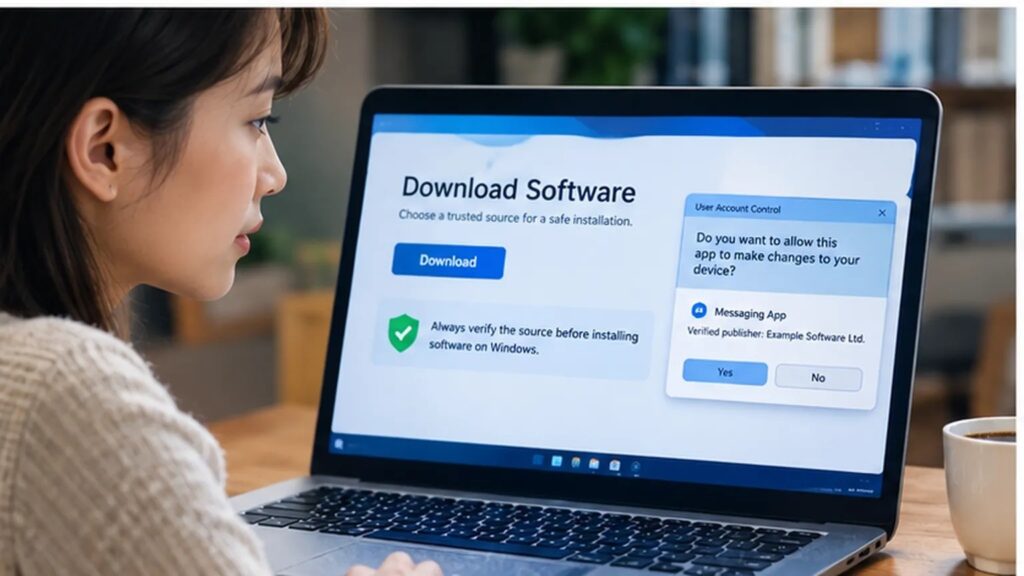
Messaging applications are popular targets for fake installers, imitation download pages, outdated packages, and misleading advertisements. A page can look professional without being trustworthy.
Windows users should be particularly cautious with executable files received through unknown websites, forum posts, direct messages, or pop-up advertisements.
Before installing or updating desktop software, check whether:
- the source is credible;
- the version matches the operating system;
- the file has an unexpected name or extension;
- the installer asks for permissions unrelated to its purpose;
- the page uses misleading ‘Download’ buttons.
Users comparing desktop versions can benefit from reviewing a structured 电报下载与安装指南 before making changes to an existing setup, especially when they are unsure which download or installation path is appropriate.
The point is not to make installation seem difficult. It is to avoid turning a simple setup task into a security problem.
If something looks inconsistent, stopping and checking is usually faster than repairing a compromised or unstable installation later.
Multilingual Users Need Clearer Interfaces
Hong Kong and Taiwan are both highly connected digital markets, but users do not necessarily operate in a single language.
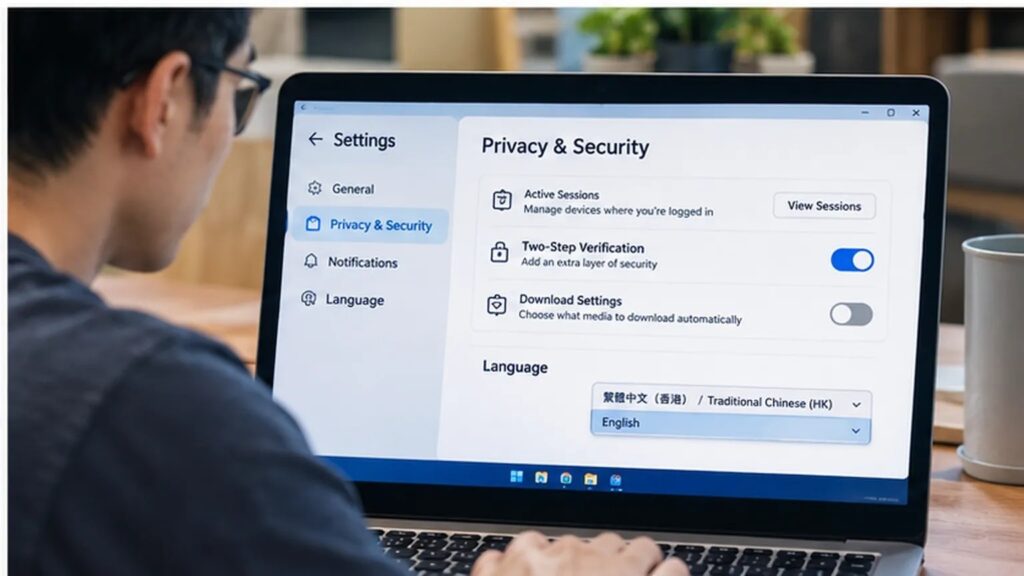
A person may use Traditional Chinese for personal conversations, English for business communication, and a mixture of both in professional groups. Software interfaces may also default to English even when most conversations are Chinese.
This creates a small but important usability issue.
Users are more likely to configure privacy, notifications, storage, and account settings correctly when they understand the terminology on screen.
Someone who is comfortable with English may prefer to leave the interface unchanged. Another user may find Chinese terminology easier when reviewing unfamiliar security or storage options.
There is no universally correct language setting.
What matters is that the interface makes important controls understandable.
For organisations with multilingual teams, it is also useful to separate the language of the application from the language of the conversation. Team members do not need identical interface settings in order to communicate effectively with each other.
That flexibility is one of the advantages of modern desktop software.
Review Privacy and Active Sessions
A messaging account should not be treated as secure simply because the user remembers the password.
Modern communication accounts can remain active on several devices at once. That is convenient, but it also means users should occasionally review which devices are still connected.
An old laptop, temporary workstation, or unfamiliar session should not remain authorised indefinitely.
A useful security review includes:
- checking active sessions;
- removing devices that are no longer used;
- reviewing two-step verification;
- confirming recovery information;
- limiting unnecessary visibility of personal details;
- avoiding the sharing of verification codes.
Verification codes deserve special attention because social engineering often relies on urgency.
A message may claim that an account is about to be suspended or that identity confirmation is required immediately. Users should be suspicious when another person asks for a login or verification code.
Legitimate account access should not require handing a private code to a stranger.
Treat Large Groups Differently From Private Conversations
Desktop messaging becomes more demanding when users join large public communities.
A private conversation between two people may generate only a few files and notifications each day. A large group can produce hundreds or thousands.
Using identical settings for both environments rarely makes sense.
Public groups may be better suited to:
- muted notifications;
- limited automatic media downloads;
- stricter privacy settings;
- more careful link checking;
- periodic cleanup of downloaded files.
The same principle applies to work channels.
A project group used for active collaboration may deserve immediate notifications during working hours, but not late at night. A professional communication setup should reflect the user’s actual schedule.
This is one of the reasons desktop configuration is worth reviewing rather than simply accepting every default.
Keep the Desktop Workspace Manageable
Good messaging habits are partly technical and partly organisational.
Even perfectly configured software becomes difficult to manage if conversations, files, and notifications are allowed to accumulate without structure.
Small habits help:
Archive conversations that are no longer active. Remove downloaded files that are no longer useful. Pin important chats instead of searching for them repeatedly. Keep confidential documents in appropriate storage rather than leaving them indefinitely in a general download folder.
Users who spend most of their day on a computer may also find it useful to separate work communication from casual browsing whenever possible.
The objective is not to create rigid rules. It is to reduce the number of unnecessary decisions made throughout the day.
Every time a person has to ask, ‘Where did that file go?’ or ‘Which group was that message in?’ the workflow becomes slightly slower.
Make Desktop Messaging Part of a Sustainable Workflow
The best desktop messaging setup is not necessarily the one with the most features enabled.
It is the one that fits naturally into the user’s work.
For some people, that means keeping only a few important notifications active. For others, file organisation is the biggest priority. Multilingual users may care more about interface clarity, while remote workers may pay closer attention to session security and document handling.
Whatever the individual priorities, a reliable setup usually comes back to the same fundamentals:
- use the appropriate desktop version;
- organise downloaded files;
- manage notifications intentionally;
- choose an interface language that is easy to understand;
- review privacy and active sessions;
- verify software sources before installing updates.
These are simple steps, but together they make desktop messaging significantly easier to manage.
For users in Hong Kong, Taiwan, and other digitally connected markets, desktop communication is likely to remain an important part of everyday work. As conversations become more international and file-heavy, thoughtful configuration will matter just as much as the messaging application itself.