How Small Teams Can Build a More Consistent Document Workflow Across Desktop and Mobile
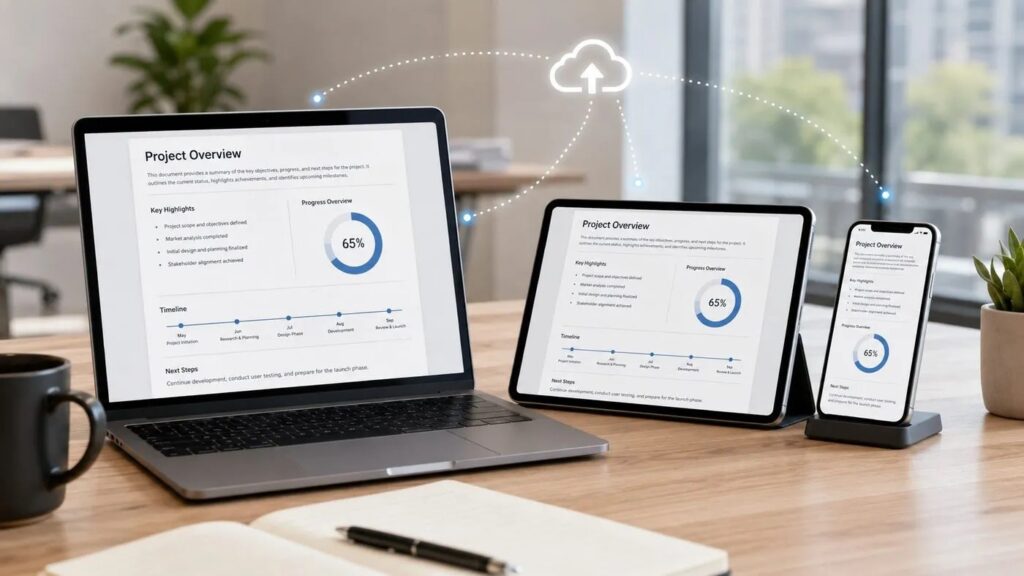
Small teams often work with the same documents across several devices. A report may be created on a Windows laptop, reviewed on a phone, revised on another computer, converted to PDF, and then shared with a client or colleague.
This flexibility is useful, but it can also create confusion. Different versions of the same file may appear in several folders. Formatting may change when a document moves between devices. Team members may not know which copy is current, and mobile edits can sometimes affect layouts that were carefully prepared on desktop.
A consistent document workflow helps reduce these problems.
The goal is not simply to choose an office suite. Teams also need clear rules for file formats, naming, storage, editing, PDF exports, mobile access, permissions, and software updates.
When these elements are organized together, document work becomes easier to manage across desktop and mobile environments.
Why Cross-Device Document Workflows Break Down
Document problems usually begin with small inconsistencies.
One employee may save a report locally on a laptop, while another uploads a slightly different copy to cloud storage. A third person may download the file to a phone and make a quick change without realizing that someone else is already editing another version.
Before long, the same project can contain files with names such as:
- report-final.docx
- report-final2.docx
- report-new.docx
- report-final-new.docx
The problem becomes even more complicated when multiple formats are involved.
A word-processing document may later be exported as a PDF. A spreadsheet may be attached to an email while a newer version is still stored locally. A presentation may open correctly on one computer but display differently on another because of font or compatibility issues.
Cross-device work adds another layer. Desktop applications usually offer more advanced formatting and editing tools, while mobile versions are designed for faster review and lighter changes.
Without a simple workflow, users may assume that every device and every file copy is interchangeable when they are not.
The solution is to make document management predictable before problems appear.
Choose an Office Suite Around File Compatibility
Office software should be evaluated according to the files a team actually works with.
For many organizations, compatibility with common document formats is more important than any single feature.
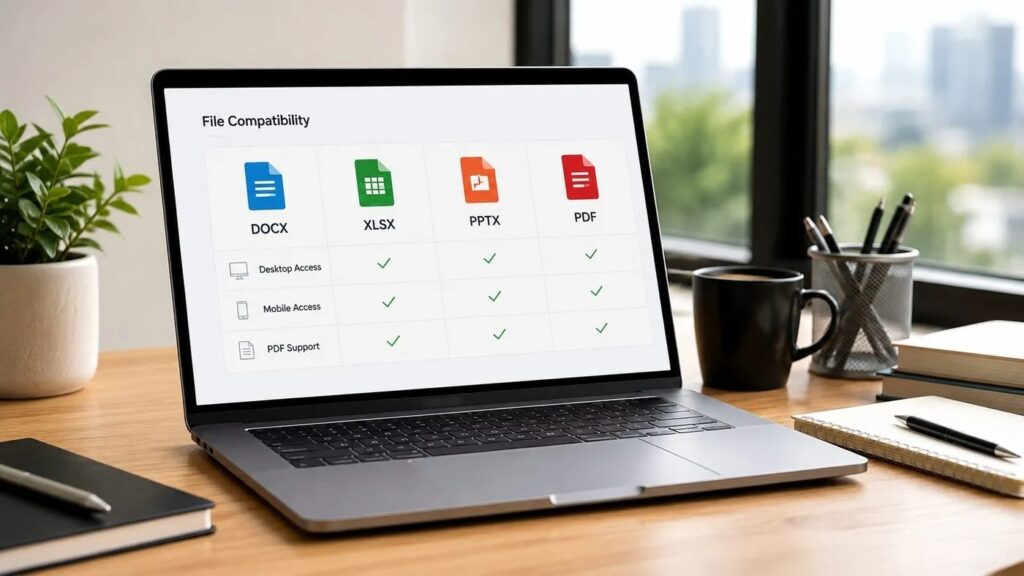
Typical formats include:
- DOCX for word-processing documents;
- XLSX for spreadsheets;
- PPTX for presentations;
- PDF for sharing and final distribution.
Teams should also think about where those files will be opened.
A document created on Windows may later be reviewed on macOS, Android, iOS, or a web-based environment. If the layout changes substantially between devices, employees may waste time fixing formatting instead of working on the content itself.
Office suites such as WPS Office are often considered alongside other document tools because users may need to open, edit, and export several common file types from one environment.
The important question is not whether one office suite offers the longest feature list.
Instead, teams should ask:
- Does it support the file formats we use most often?
- Can employees work from both desktop and mobile devices?
- Are PDFs easy to review or export?
- Does the software fit the team’s storage workflow?
- Are updates and permissions straightforward to manage?
Choosing software around compatibility makes it easier to build consistent habits later.
Verify Software and Setup Information Before Installation
Before installing any office application, users should confirm that they understand what version they need and whether it supports their operating system.
Windows, macOS, Android, and iOS may use different installation packages and update methods.
Users should also distinguish between official software distribution channels and third-party informational websites. A website discussing installation or compatibility should not automatically be assumed to represent the software publisher.
A basic software review should include:
- operating-system compatibility;
- available desktop or mobile versions;
- file-format support;
- system requirements;
- update behavior;
- and any permissions requested during setup.
Chinese-speaking users researching compatibility, installation, or product information may encounter search terms such as wps官网 when looking for details about WPS Office, supported platforms, and available setup options.
After installation, users should review the application’s basic configuration.
This includes checking where files are stored, whether cloud synchronization is enabled, how automatic updates work, and whether the software is allowed to launch automatically when the device starts.
A few minutes spent reviewing these settings can prevent confusion later, especially when the same documents will be opened on several devices.
Standardize File Names and Folder Structure
A good document workflow needs a predictable folder structure.
Teams should avoid relying entirely on the default Downloads or Documents folders, especially when several people are working on the same project.
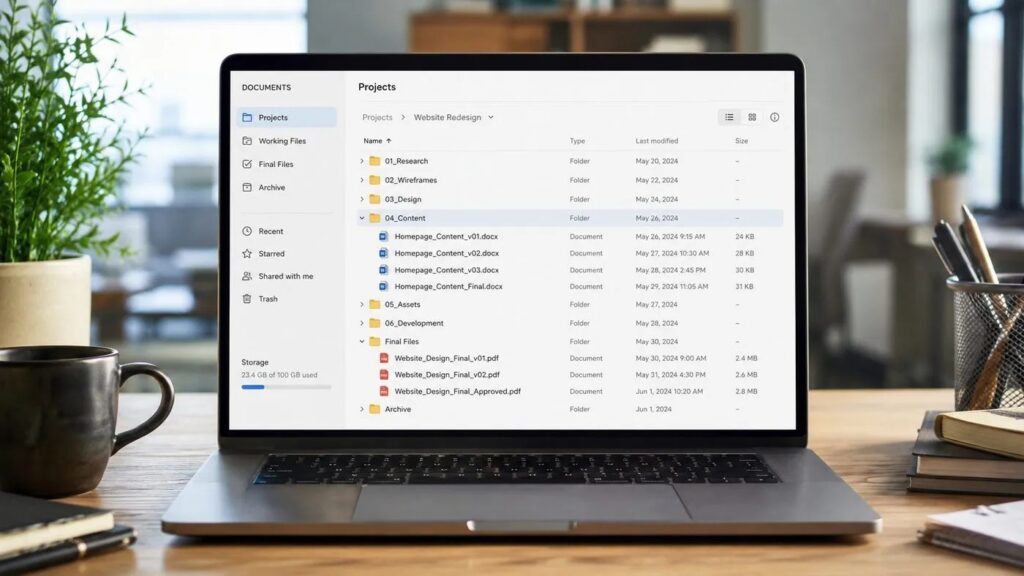
A simple structure might look like:
Client / Project / Working Files / Final Files / Archive
The exact folder names are less important than consistency.
File naming should follow the same principle.
Instead of repeatedly adding words such as “final” or “new,” teams can use a format that communicates useful information.
Project-Report-2026-08-v03.docx
This immediately tells the user:
- which project the file belongs to;
- what type of file it is;
- when the version was created;
- and which revision it represents.
Version numbers are particularly helpful when several people review the same document.
Once a file has been approved, teams can move the final editable version and any exported PDF into a clearly defined final folder.
Older working copies can be archived rather than deleted immediately.
This keeps the active workspace clean while preserving a record of previous versions if they are needed later.
Keep Desktop and Mobile Editing Predictable
Desktop and mobile devices should have different roles in the workflow.
Desktop computers are usually better suited for substantial editing.
Long reports, complicated spreadsheets, and presentation design often require a larger screen, keyboard, and more precise formatting controls.
Mobile devices are useful for different tasks.
- reviewing a document;
- leaving comments;
- checking a spreadsheet value;
- approving a file;
- making a small correction;
- or reading a PDF while away from a desk.
Problems appear when users treat mobile and desktop editing as identical.
A small change to text may be harmless, but more complex formatting changes can affect page breaks, tables, fonts, or presentation layouts.
Teams should therefore decide which types of edits are appropriate on mobile.
It is also useful to check the final document on the device where it will most commonly be viewed.
For example, a presentation designed on desktop should be reviewed before an important meeting. A PDF created from a word-processing file should be opened independently to confirm that page breaks and fonts are correct.
Predictability is more valuable than forcing every device to perform the same tasks.
Manage PDFs Without Creating More File Confusion
PDFs are useful because they help preserve layout when documents are shared.
However, PDF workflows can become confusing when teams do not clearly distinguish between editable source files and final exports.
For example, a report might exist as:
- Report-v05.docx
- Report-v05.pdf
The editable document should normally remain the working source. The PDF should represent the version intended for review, distribution, or archiving.
If changes are required later, it is usually better to update the source document and export a new PDF rather than creating several separately edited PDF copies.
Teams should also think carefully about PDF annotations.
Comments and highlights can be useful during review, but the annotated copy should have a clear purpose and file name.
For example, Project-Report-v05-review-comments.pdf is easier to understand than Report-edited-final.pdf.
Office suites that support both editable document formats and PDF tools can simplify this process, but the workflow still needs clear rules.
Software does not automatically prevent version confusion. File management practices do.
Review Storage, Permissions and Software Updates
Document workflows depend on more than editing tools.
Storage settings determine where files are saved and who can access them.
If a team uses cloud storage, employees should understand which folders are shared and which are private.
Sensitive documents should not automatically be placed in broadly accessible locations simply because synchronization is convenient.
Permissions should also be reviewed periodically.
Employees who no longer work on a project may not need continuing access to its files. Shared folders can gradually accumulate unnecessary permissions if nobody checks them.
Local storage matters too.
A laptop may contain offline copies of files that have since been updated elsewhere. Employees should know whether their office software synchronizes automatically or whether they need to save changes manually.
Software updates are another important part of consistency.
Older application versions can create compatibility problems, particularly when employees exchange files created with newer features or formats.
Teams should therefore establish a simple update policy rather than allowing every employee to postpone updates indefinitely.
Set Up a New Office Suite Consistently Across Devices
When introducing a new document tool, teams should avoid configuring every device independently without a plan.
A better process is to review the same basic areas each time.
Teams introducing a new document suite can use a WPS Office setup guide as one reference point when reviewing compatibility, desktop and mobile access, file formats, storage, and update settings.
The setup process should consider:
- which desktop operating systems employees use;
- which mobile devices require access;
- which file formats are essential;
- where documents will be stored;
- whether cloud synchronization is needed;
- how PDFs will be handled;
- and how software updates will be managed.
Users should also review application permissions.
A mobile office application may request access to local storage, cloud accounts, or other device features. Teams should enable only the permissions that are actually necessary for the intended workflow.
Desktop and mobile installations should also use the same general storage and naming conventions.
This makes it easier for employees to switch devices without creating new organizational systems every time.
A Practical Cross-Device Document Checklist
A simple checklist can help teams keep document workflows consistent.
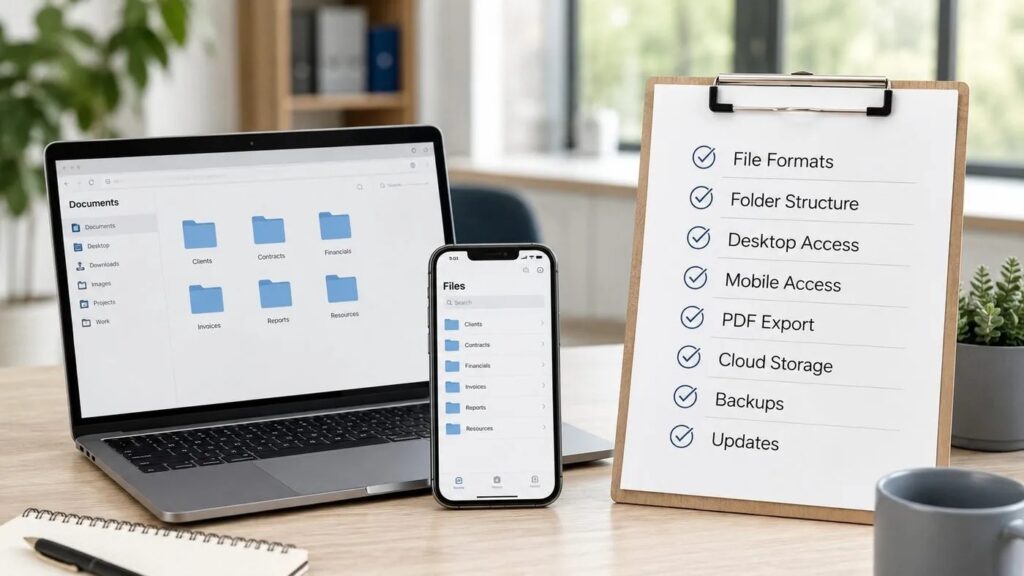
Before adding a new device or office application, review the following:
- Confirm the application version.
- Check supported document formats.
- Verify desktop and mobile compatibility.
- Define the project folder structure.
- Use consistent file-naming rules.
- Decide where working files will be stored.
- Identify where final files will be archived.
- Review PDF export and annotation practices.
- Confirm cloud-storage permissions.
- Review local and automatic download settings.
- Check backup arrangements.
- Confirm how software updates are handled.
- Remove outdated file versions from active folders.
- Review final documents on the devices where they will be used.
The checklist does not need to become a complicated policy document.
Its purpose is simply to create repeatable habits.
When everyone follows the same basic process, it becomes much easier to identify the correct file, understand where documents belong, and move between devices without creating unnecessary copies.
Build the Workflow Around the Files
A reliable document workflow is not created by installing an office suite alone.
Teams need a consistent approach to file formats, naming, folders, PDFs, devices, permissions, backups, and software updates.
Desktop computers and mobile devices can complement each other when they are given clear roles. Desktop environments can handle detailed editing, while mobile devices can support review, comments, and quick changes.
The same principle applies to software. Tools are most useful when they fit into a workflow that employees already understand.
By standardizing the way documents are created, edited, stored, shared, and archived, small teams can reduce version confusion and make cross-device work far easier to manage.