Upscaling 1080p Anime Scans to 4K for High-Refresh-Rate OLED Monitors
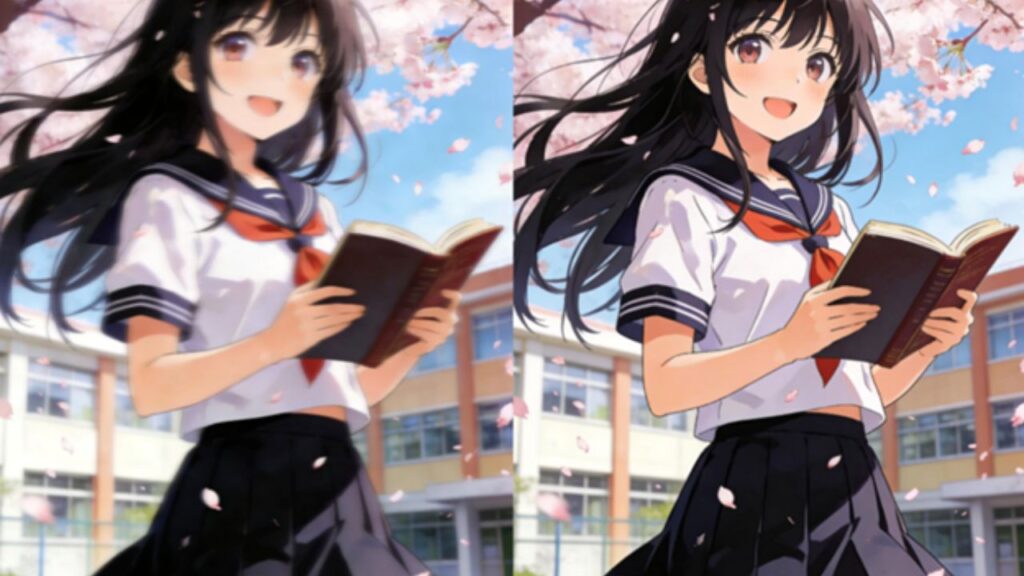
You’ve invested in a stunning 4K OLED monitor, known for its perfect blacks and vibrant colors. It makes everything look incredible, from movies to games. But when you set your favorite 1080p anime scan as your wallpaper, the magic fades. The image looks soft, pixelated, and doesn’t do your high-end display justice. This is a common problem, as most anime art found online is not optimized for 4K screens.
Fortunately, you don’t have to settle for blurry wallpapers. Modern artificial intelligence can transform your collection of 1080p anime scans into beautiful, sharp 4K images that look incredible on your high-refresh-rate monitor. This process, known as upscaling, intelligently adds pixels and refines details, creating a result that looks like it was native 4K all along. This guide will walk you through every step, from choosing the right source file to making final touch-ups.
Your Step-by-Step Guide to 4K Anime Scans
Follow these simple steps to breathe new life into your favorite anime images. The process is straightforward and doesn’t require any advanced technical skills.
Step 1: Find the Best Quality Source Image
The final quality of your 4K image depends heavily on the quality of your starting file. The principle of “garbage in, garbage out” is very important here. A low-quality, heavily compressed 1080p image will result in a blurry 4K image with noticeable artifacts. Look for source images that are clean, clear, and have sharp lines.
Whenever possible, choose a PNG file over a JPG. PNG files use lossless compression, which means they preserve all the original image data, including the sharp edges and flat colors common in anime art. JPGs, on the other hand, use lossy compression, which can create small, blocky artifacts that become much more obvious after upscaling.
Step 2: Choose a Powerful AI Upscaling Tool
Traditional upscaling methods simply stretched the image, resulting in a blurry mess. Modern tools use AI to analyze the image and intelligently create new pixels that look natural. These tools are trained on millions of images, allowing them to understand the difference between lines, textures, and color gradients. For this task, you’ll want a dedicated tool built for this purpose. Using a specialized Image Upscalerensures the AI model is optimized for illustrations and digital art, preserving the unique style of anime.
Step 3: Upload Your 1080p Anime Scan
Once you’ve selected your tool, the process is usually very simple. You’ll see an option to upload or drag and drop your 1080p source file. After uploading the image, you’ll need to configure a few settings. The most important setting is the target resolution. Since you are going from 1080p (1920×1080) to 4K (3840×2160), you should select a 4x upscale factor. Many tools also offer specific models for “digital art” or “anime,” which you should always choose for the best results.
Step 4: Process and Download Your 4K Image
With your settings confirmed, you can start the upscaling process. The AI will analyze your image, identify key features like character outlines and facial details, and reconstruct it at a higher resolution. This can take anywhere from a few seconds to a minute, depending on the complexity of the image and the tool’s processing power.
Once it’s finished, you’ll be presented with a preview of the upscaled image. Carefully inspect it to make sure you’re happy with the result. Look for sharp lines, clean colors, and a lack of strange artifacts. If it looks good, download the final 4K version to your computer.
Step 5: Review and Make Final Adjustments
In most cases, the AI-upscaled image will be ready to use. However, sometimes you may want to make small tweaks to perfect it. Perhaps the colors are slightly off, or you want to adjust the brightness to better match your OLED screen’s capabilities. For these minor changes, you can use a simple editing tool. An AI Photo Editoroften provides one-click enhancement features that can improve contrast and color vibrancy without complicated controls. This helps you get the final image just right before setting it as your wallpaper.
Step 6: Set Your New 4K Wallpaper
Now for the rewarding part. Setting your new, high-resolution anime scan as your desktop background will showcase the full power of your 4K OLED monitor.
* On Windows: Right-click the downloaded 4K image, and select “Set as desktop background.”
* On macOS: Go to System Settings > Wallpaper. Click “Add Folder” to select the folder containing your 4K image, then choose it as your new wallpaper.
Sit back and enjoy the incredible clarity. The lines will be sharp, the colors will pop, and the entire image will feel immersive and detailed.
Tips for the Best Upscaling Results
To consistently achieve professional results, keep these best practices in mind.
* Prioritize Clean Art: Upscaling works best on images with clear line art and distinct colors. Scans with heavy text overlays or digital watermarks can confuse the AI. Try to find the cleanest version of an image before you begin.
* Use Noise Reduction Wisely: Some upscaling tools offer a noise reduction feature. This can be helpful for cleaning up grainy source images, but overuse can lead to an overly smooth, “plastic” look that removes fine details. Apply it at a low setting first and see if you like the result.
* Check Color Profiles: Ensure the color profile of the output image (usually sRGB) is correct. OLED displays have a wide color gamut, and an incorrect profile can make the colors appear washed out or oversaturated. Most AI tools handle this automatically, but it’s good to be aware of.
* Batch Process Your Collection: If you have a large collection of anime scans to upscale, look for a tool that offers batch processing. This allows you to upload multiple files at once and apply the same settings to all of them, saving you a significant amount of time.
Common Mistakes to Avoid
Upscaling is a powerful technique, but a few common mistakes can lead to disappointing results. Here’s what to watch out for.
| Mistake to Avoid | Why It’s a Problem | How to Fix It |
| Starting with a Tiny Image | Upscaling a very small file (e.g., 480p) to 4K requires the AI to guess too much data, resulting in a blurry, artificial look. | Always start with the highest resolution source available, preferably 1080p or higher. |
| Using the Wrong AI Model | Applying a “photorealistic” model to an anime drawing can create unwanted textures and distort the line art. | Select an AI model specifically designed for “artwork,” “illustration,” or “anime” for the best results. |
| Over-Sharpening the Output | Applying too much sharpening after upscaling can create ugly white halos around lines and make the image look harsh. | Let the AI handle the sharpness during the upscaling process. Avoid adding extra sharpening in post-editing unless necessary. |
| Ignoring Blatant Artifacts | Sometimes the AI can misinterpret parts of an image, creating strange patterns or warped lines. | Always review the final 4K image closely. If you see major flaws, try upscaling the original again with slightly different settings. |
Conclusion
Upgrading your favorite 1080p anime scans to 4K is one of the best ways to take full advantage of a high-resolution OLED monitor. What was once a blurry, pixelated image can become a work of art with razor-sharp lines and brilliant colors that fill your screen. By starting with a high-quality source file and using a capable AI-powered tool, you can build a stunning collection of 4K anime wallpapers. The process is quick, easy, and completely transforms your desktop experience, making your display look as good as it was meant to.